
Tell the studio your idea.
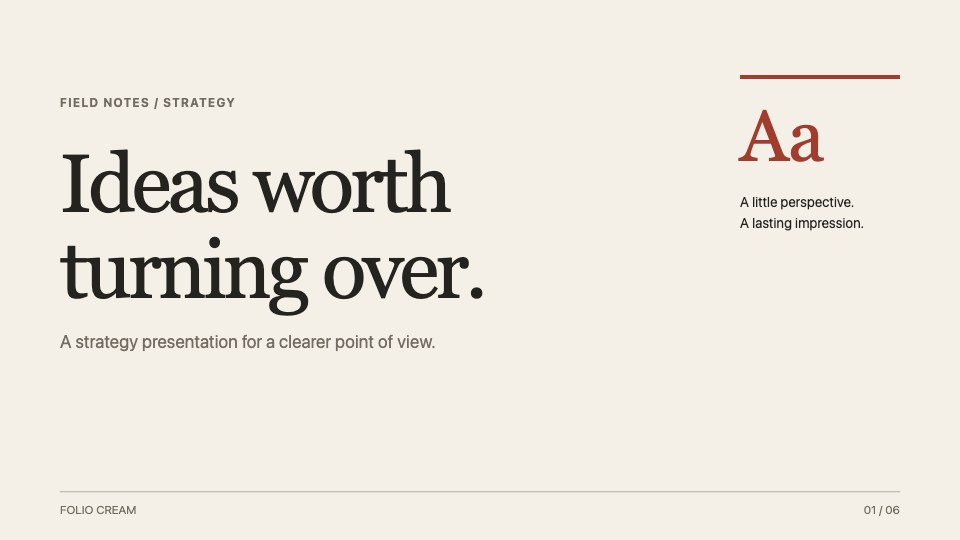
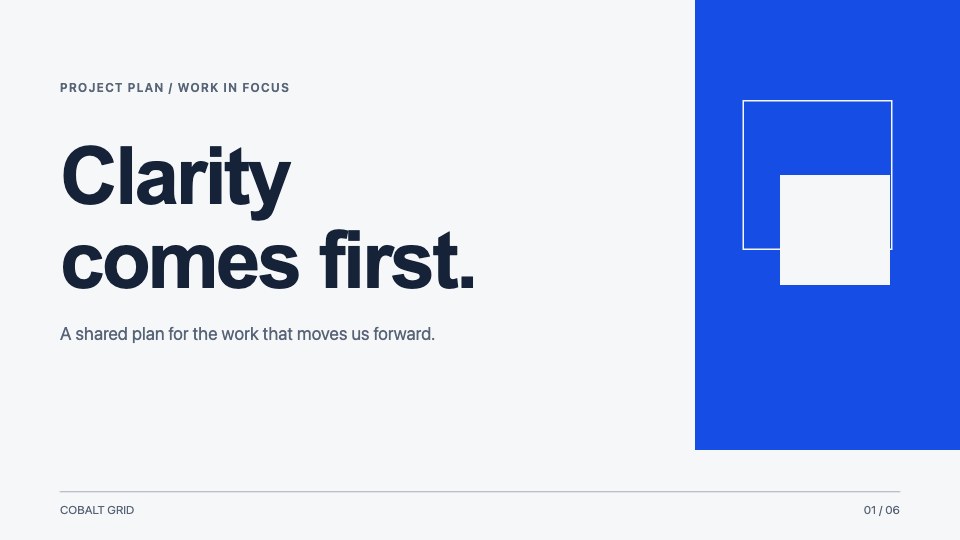
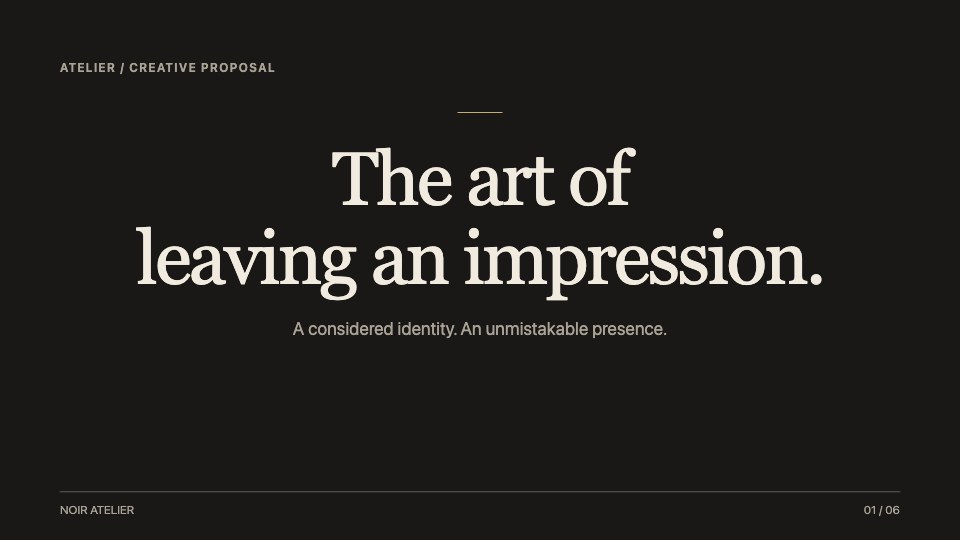
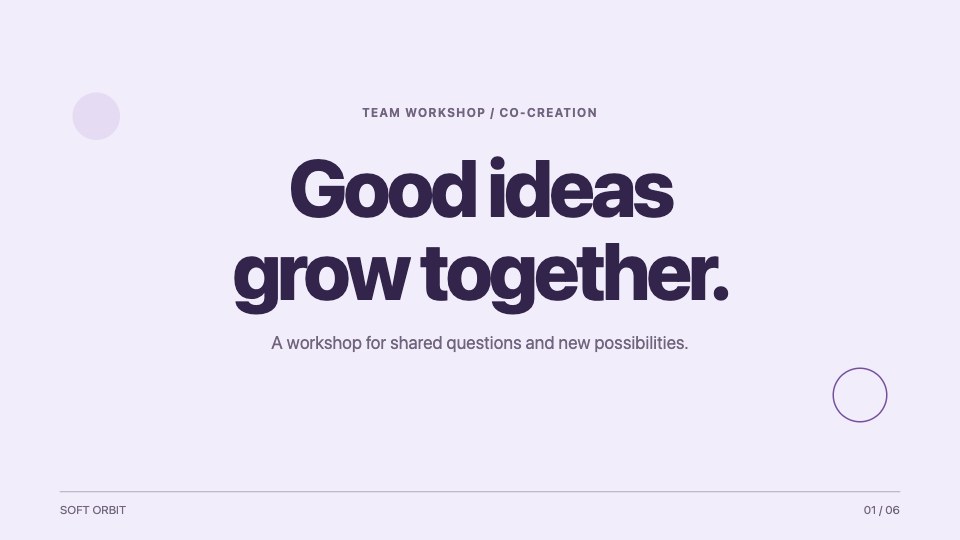
Describe the topic, audience, and story you want to tell. Start a new presentation with AI or make a copy of a bundled template to give yourself a head start.
Try: “A six-slide project update for the leadership team.”
Create a pitch, tell a story, or share what you know. Just start with an idea.
Free to access. No account required.
Your first draft is a starting point. Keep the conversation going until the story, structure, and design feel right.
Describe the topic, audience, and story you want to tell. Start a new presentation with AI or make a copy of a bundled template to give yourself a head start.
Try: “A six-slide project update for the leadership team.”
Ask for a sharper headline or a simpler explanation. Select elements to edit text, adjust typography, change colors, or replace an image. Refine the details directly on your slides.
Try: “Make this slide clearer and more visual.”
Reorder your pages, add speaker notes, and preview the complete story. Present from the browser or export a copy for the people who need to see it.
Ready for the meeting. Ready for the follow-up.
Bring writing, design, and revision into one workspace. Stay with your idea as it takes shape.
Ask for new pages or changes in plain language. The assistant can use your selected slide and inspected element as context, so you can focus on the part that needs attention.
A clearer opening, a stronger headline, and a simpler path into your story.
Shape the look with palettes, fonts, type scale, and spacing. Use Inspect for precise text and image changes, then preview your design before saving.
Upload images, media, and fonts. Keep shared assets available across your decks, and replace or crop images as your presentation evolves.
Use undo and redo while editing, or restore a saved revision from History. Experiment with a new direction without losing your earlier work.
Organize presentations into folders, search your library, and duplicate a deck for the next occasion. Reorder pages to find the right flow.
One flexible presentation maker for the many ways your ideas need to show up.
Give a business proposal, product launch, or creative concept a clear narrative. Connect the problem, your approach, and the next step you want your audience to take.
Turn a project update or team review into a story people can follow. Give milestones, lessons, and decisions their own space instead of crowding everything onto one page.
Build a lesson, workshop, or onboarding presentation around a thoughtful sequence. Add speaker notes to keep the extra context close while the slides stay focused.
Your deck has a life beyond the editor. Rehearse your story, present it in the room, and send a version your audience can keep.
PowerPoint export preserves slides as images; individual text and shapes are not editable in PowerPoint.
A little clarity on how Dear Slides works, what you can make, and what happens to your work.
Dear Slides is a browser-based AI presentation maker and visual slide editor. You can create a deck through chat, refine text and design, manage pages and assets, then present or export your work from the same studio.
No password or account is needed. Enter your email to join the studio and subscribe to the Dear Slides newsletter, then start a presentation or use a bundled template. You can unsubscribe anytime.
Yes. Ask the assistant for changes or use the visual tools to edit text, typography, colors, and images. You can reorder, duplicate, and delete pages, adjust the overall design, and restore earlier saved revisions.
Yes. Upload images, media, and fonts in the studio. Assets can belong to an individual deck or be shared across your workspace. Uploads currently support up to 10 MB per file and 100 MB per workspace.
You can print to PDF, export an image-based PowerPoint file, or download HTML and source ZIPs with assets. PowerPoint slides are exported as images, so their individual text and shapes cannot be edited in PowerPoint.
Your saved presentations belong to an anonymous browser workspace, recognized by a cookie. Return in the same browser to find them again. Clearing cookies or changing browsers starts a new workspace, so export important decks to keep your own copy.
No. You can create presentations with chat and the visual editor. Source export is also available if you want to work with the underlying React slides yourself.
Tell Dear Slides what you have in mind.